

Watch Runs in the Web UI
Every run is recorded: each step's status, timing, and log. This lesson uses a slow workflow so you can follow it live, stop it, and look back at earlier runs.
The workflow
curl -fsSLO https://docs.dagu.sh/tutorial/dags/tutorial-02-monitoring.yaml# Dagu tutorial, lesson 2: https://docs.dagu.sh/tutorial/monitoring
description: A slow run to watch live in the Web UI
type: graph
steps:
- id: download
run: |
for part in 1 2 3 4 5; do
echo "Downloaded part $part of 5"
sleep 1
done
- id: transform
run: |
for batch in 1 2 3; do
echo "Transformed batch $batch of 3"
sleep 1
done
depends: download
- id: publish
run: echo "Published 3 batches"
depends: transformEach step prints a line every second, so the run takes about eight seconds.
Watch it run
Published 3 batches
Select a step while it runs. Its log fills in as lines arrive.
Follow a run in the Web UI
- Open http://localhost:8080, select Workflows, then
tutorial-02-monitoring. - Select the Start button (▶) at the top right, then Start in the dialog.
The workflow page has three parts:
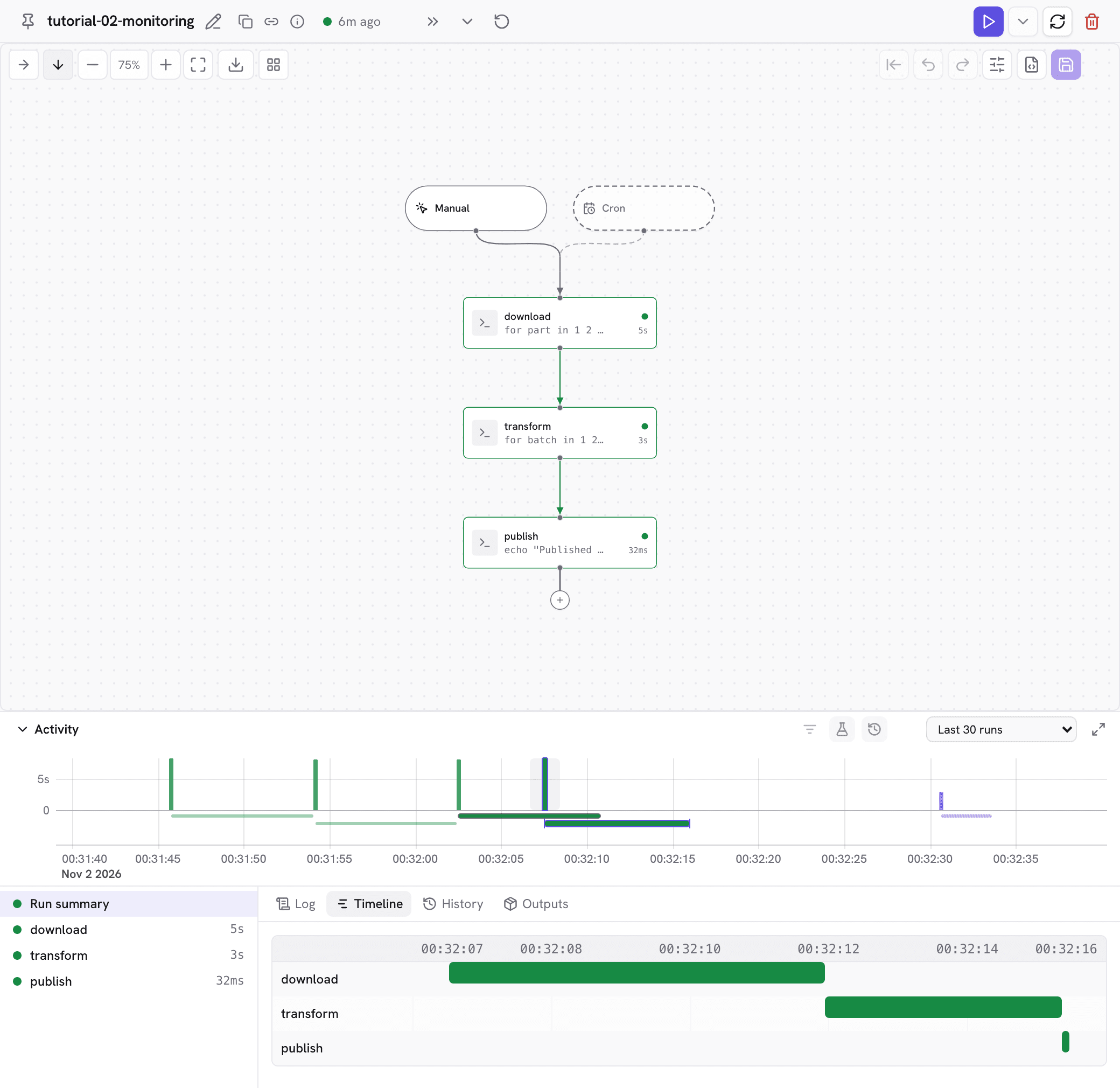
- The workflow bar at the top shows the selected run and its status. Its buttons stop or retry the run and switch to older or newer runs.
- The canvas draws the steps as a graph. Each step shows its status in the selected run.
- Activity at the bottom charts recent runs and lists the steps of the selected run.
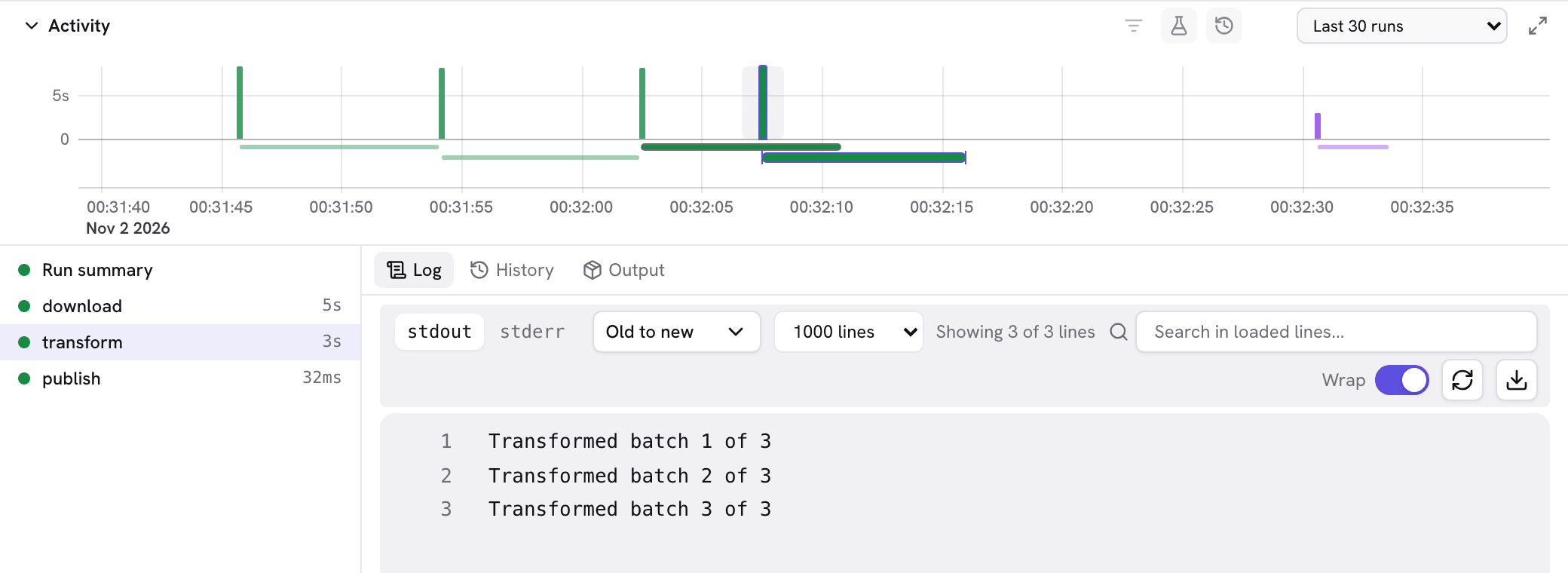
Select a step, on the canvas or in the Activity list, to see what it printed on the Log tab. The log keeps updating while the step runs.
Look back at earlier runs
Run the workflow two or three more times, then open Activity:
- Timeline shows when each step ran and how long it took.
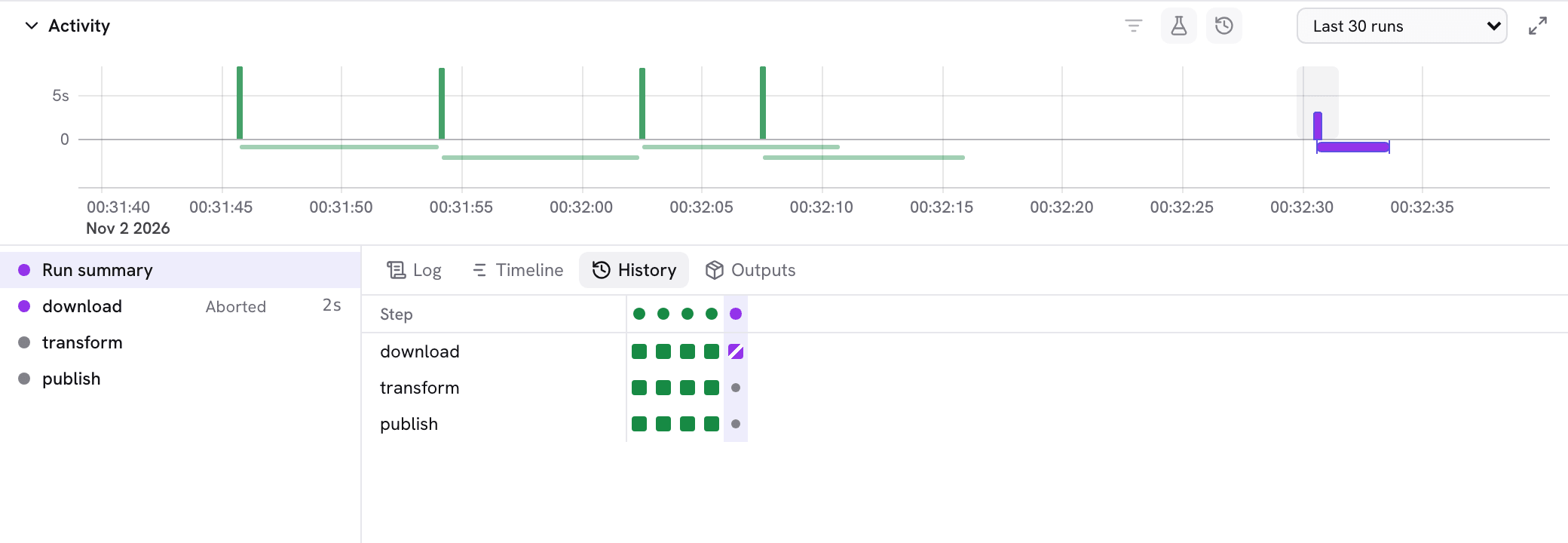
- History shows each step's status across recent runs, one column per run. Select a cell to open that run and step.
Stop a run
Start the workflow again and select the stop button in the workflow bar while download is running. The run and download end as Aborted. The steps after it never start.
The same from the terminal
dagu start tutorial-02-monitoring.yaml     # run and print the result
dagu status tutorial-02-monitoring.yaml    # status of the latest run
dagu history tutorial-02-monitoring.yaml # recent runsTo stop a run from a second terminal, run dagu stop tutorial-02-monitoring.yaml.
Try it
- Start a run in the Web UI, then run
dagu status tutorial-02-monitoring.yamlin the terminal while it is still going. Do both show the same step running? - Find the run you stopped in History. Which steps have no color?
Answers
- Yes. The Web UI and the CLI read the same run records, so a run started in one shows up in the other.
transformandpublish. They never started in that run, so their cells show a gray dot.
To get an email when a run fails while you are away, connect the server to Dagu Console in lesson 10.