

Alerts from Dagu Console
The Web UI shows a failed run when you look at it. Dagu Console watches for you: it emails you when a workflow fails or a server stops reporting, and shows all your servers in one place. It is free for one server. Monitoring is in beta.
Workflows still run only on your server. The server sends Dagu Console a short report about its runs over outbound HTTPS; full logs, outputs, and secrets never leave it.
Connect your server
In the Web UI, select External Monitoring under Monitor in the sidebar. It opens the Monitor this server for free card on Plan & features. Only administrators see it.
Keep the level marked (recommended) and select Connect for free.
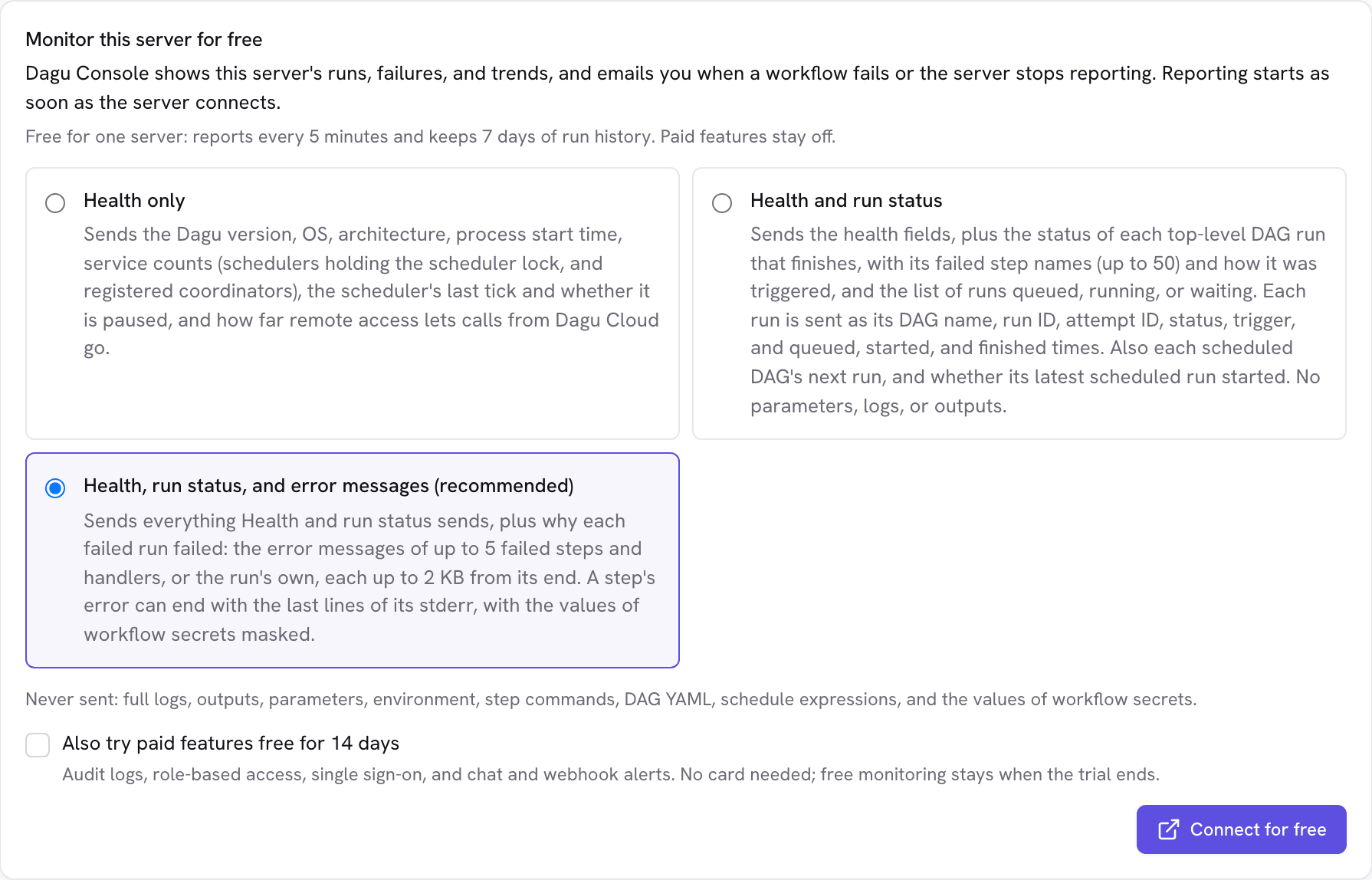
Dagu Console opens in a new tab. Sign in or sign up, check that the code matches the one Dagu shows, and select Connect for free monitoring.
On the page that confirms the connection, select Send a test alert. The test email goes to the workspace's owners and admins.
Get a real alert
Make a run fail with the workflow from lesson 6:
- Change
limit: 2tolimit: 0incall_apiand starttutorial-06-failures-and-retries. The run fails. - Within a minute or so, an email arrives. It names the workflow, the server, and the failed steps, quotes the end of the error, and links to the run in Dagu Console.
- Change
limitback to2and start the workflow again. The run partially succeeds, which resolves the alert, and a second email says the workflow recovered.
See every server in one place
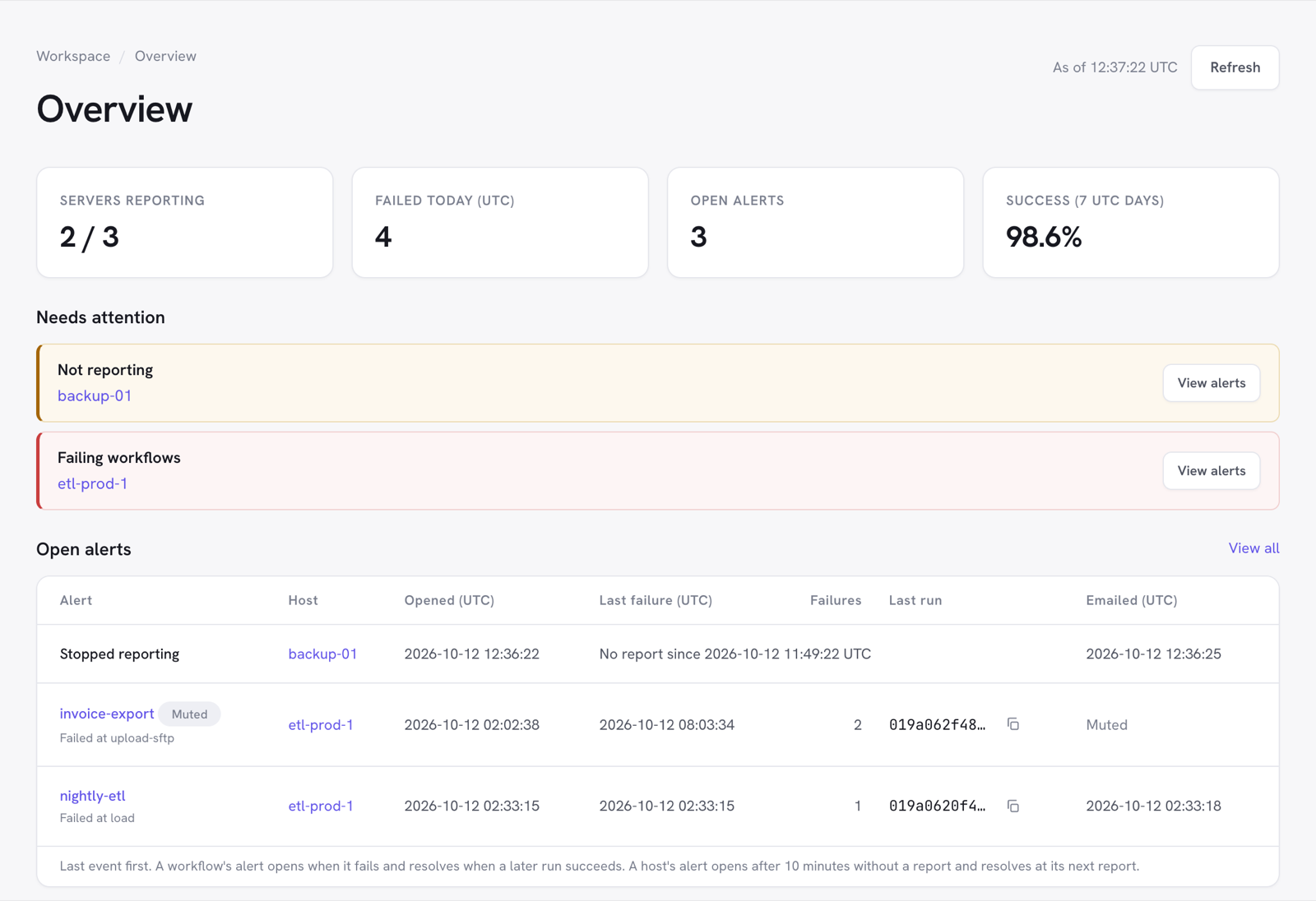
- Overview shows which servers report, what failed today, and the open alerts.
- Runs lists finished runs from every server. A failed run's page shows why it failed.
- Insights charts each workflow's runs, success rate, and duration over time.
What leaves your server
- Sent: the server's health, and for each finished run its workflow name, status, timing, and failed step names. At the recommended level, also the end of each failed step's error message, with workflow secrets masked.
- Never sent: full logs, outputs, parameters, environment, step commands, workflow YAML, and the values of secrets.
View last report on Plan & features shows the exact JSON the server last sent. Turn off in the same section stops reporting at once.
Try it
- Stop
dagu start-alland leave it stopped for half an hour. What arrives in your inbox? - Where do you choose who gets alert emails?
Answers
- A stopped-reporting alert. On free monitoring it opens after 25 minutes without a report. Starting Dagu again resolves it, and that email says how long the server was silent.
- In Dagu Console, under Settings → Alert emails. On free monitoring, owners and admins get them. A trial or plan adds other members and addresses, plus chat, PagerDuty, and webhook destinations.